Customer Panel
The Customer Panel is a self-service portal that allows your customers to manage their license keys independently. Customers can log in using their license key to view key information, check expiration dates, and reset their HWID (Hardware ID) when needed.
This feature provides a professional customer experience while reducing support workload by allowing customers to perform common tasks themselves.
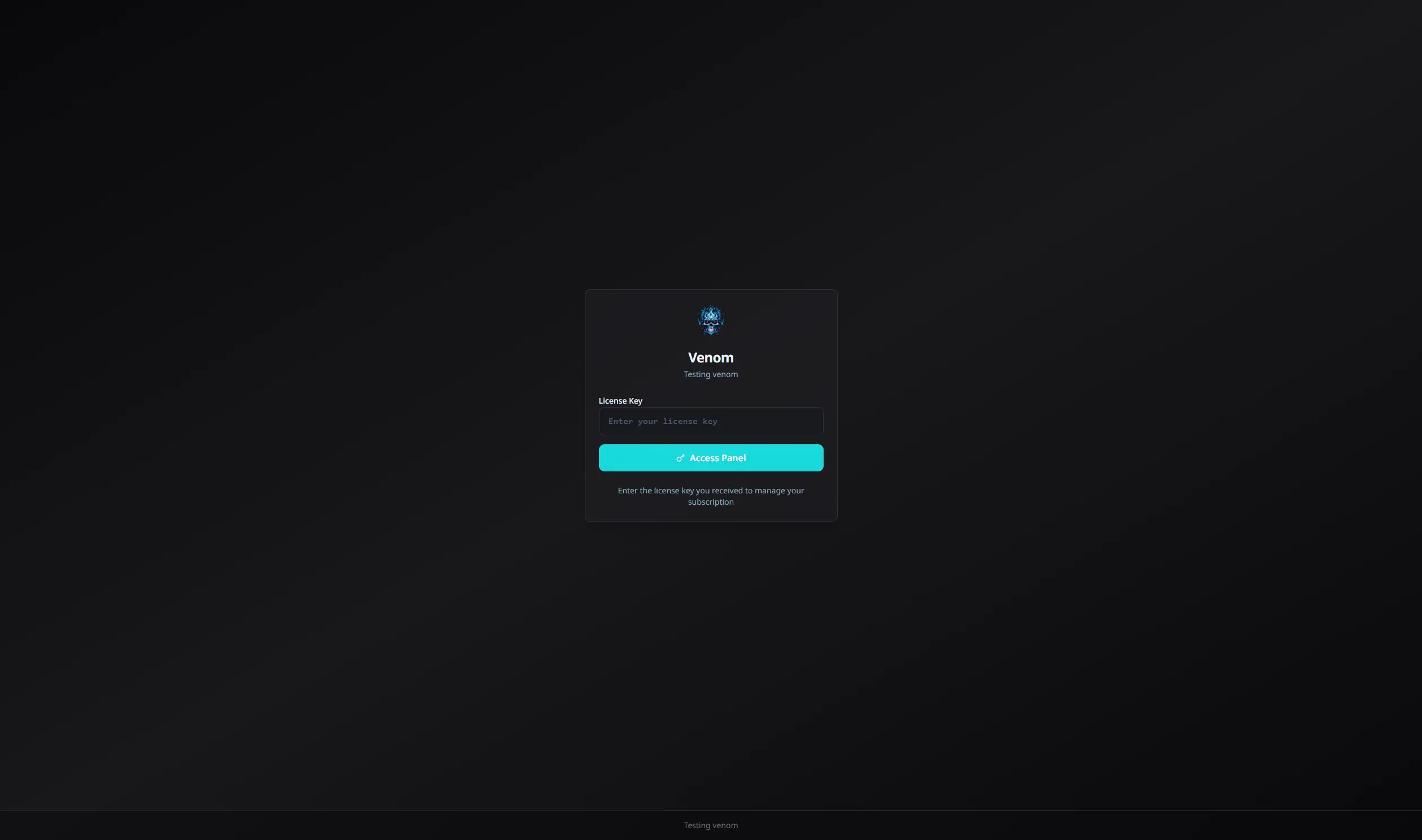
Login
Customers access the Customer Panel by entering their license key (loader key) on the login page. The login process includes:
- License Key Authentication: customers enter their loader key to authenticate
- Cloudflare Turnstile: bot protection to prevent abuse
- Custom Branding: if panel customization is configured with a custom subdomain, the login page displays your custom branding, logos, and platform name
Once authenticated, customers are redirected to their dashboard where they can view all information about their key.
Dashboard
The Customer Panel dashboard displays comprehensive information about the customer's license key:
Key Information:
- License Key: full loader key that can be copied
- Status: current status of the key (Active, Expired, Not Started, or Locked)
- Cheat Name: which cheat/product the key is for
- Store Name: which store issued the key
Time Information:
- Started At: when the key was first activated
- Expires At: calculated expiration date based on duration and freeze status
- Time Remaining: remaining time until expiration (displayed in days, hours, or minutes)
- Duration: total duration configured for the key (days and hours)
Hardware Information:
- HWID Status: whether a hardware ID is registered to the key
- Available Resets: number of HWID resets remaining for the key
Additional Status Indicators:
- Freeze Status: if the key is frozen, expiration calculations account for frozen time
- Lock Status: if the key is locked, it cannot be used
The dashboard provides a clear overview of the key's current state and helps customers understand their subscription status at a glance.
HWID Reset
The HWID (Hardware ID) reset feature allows customers to transfer their license key to a different device.
Reset Requirements:
- The key must have an HWID already registered (cannot reset if no HWID is set)
- The key must have available resets remaining (each key has a limited number of resets)
- The reset action requires confirmation to prevent accidental resets
How It Works:
- Customer clicks "Reset HWID" button on the dashboard
- System confirms the action
- HWID is cleared from the key
- Available resets counter is decremented
- Customer can now use the key on a different device
Reset Limitations:
- Each key has a limited number of available resets (configured when the key is created)
- Once all resets are used, customers must contact support for additional resets
- Resets cannot be performed if no HWID is currently registered
This self-service feature reduces support tickets for common hardware change requests while maintaining control over reset frequency.
Custom Branding
When panel customization is configured with a custom subdomain, the Customer Panel automatically displays your custom branding:
- Custom Logo: your login logo appears on the login page
- Platform Name: your platform name replaces default branding
- Platform Slogan: your slogan appears as the login page description
- Theme Colors: your custom color scheme is applied throughout the panel
This provides a seamless, branded experience for your customers that matches your store's identity.